
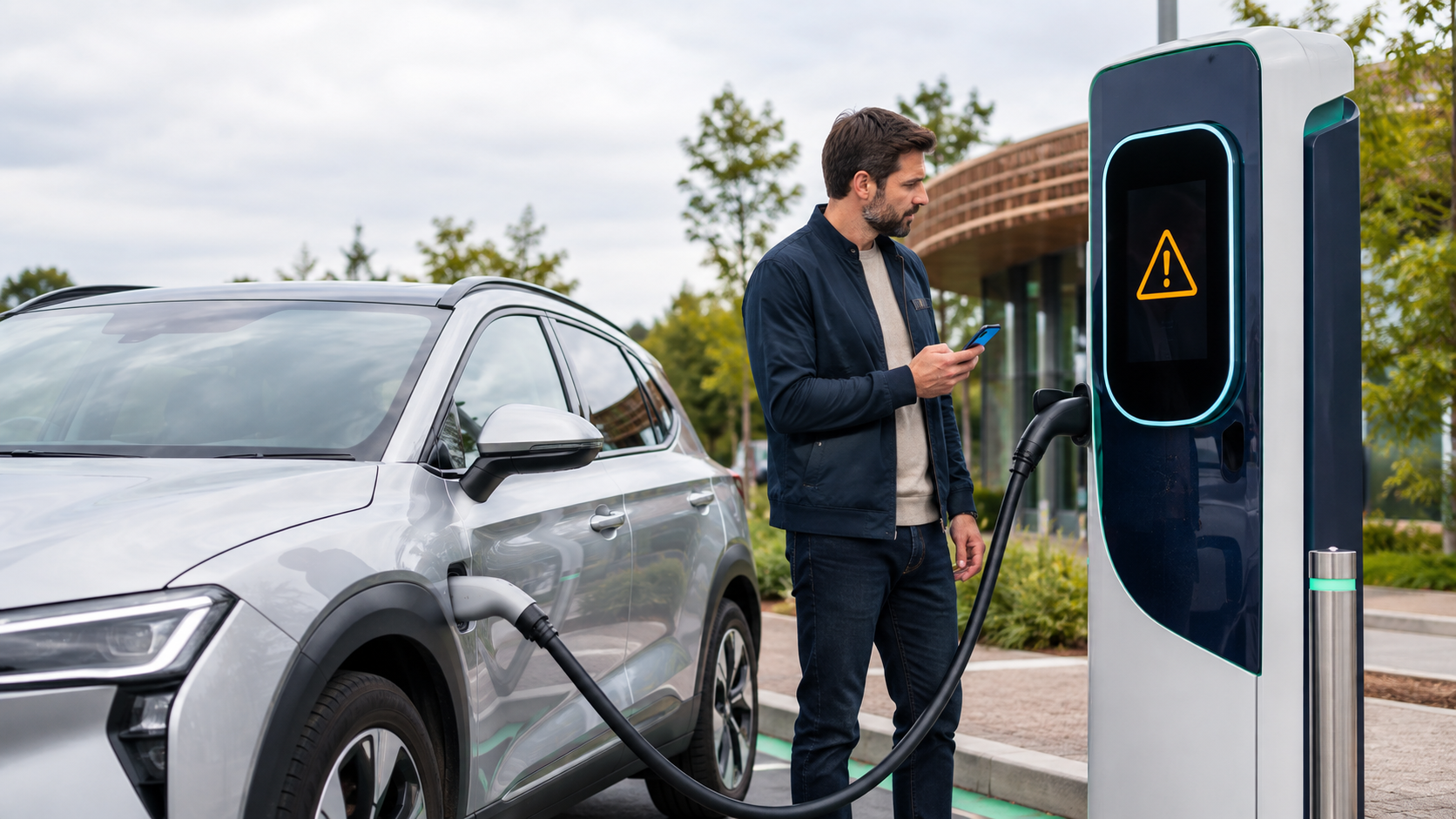
A public EV charger that will not start can disrupt a trip, but the safest response is usually straightforward: confirm that the charger is compatible with your vehicle, check the connector and screen, follow the station's required start process, make one careful retry, and then use another port or contact support.
Do not try to repair public charging equipment, open an electrical panel, reset a breaker, override a lock, or force a damaged connector. The charger screen, the charging-network instructions, and your vehicle owner's manual should take priority over general advice.
Quick answer: what to do when a public EV charger will not start
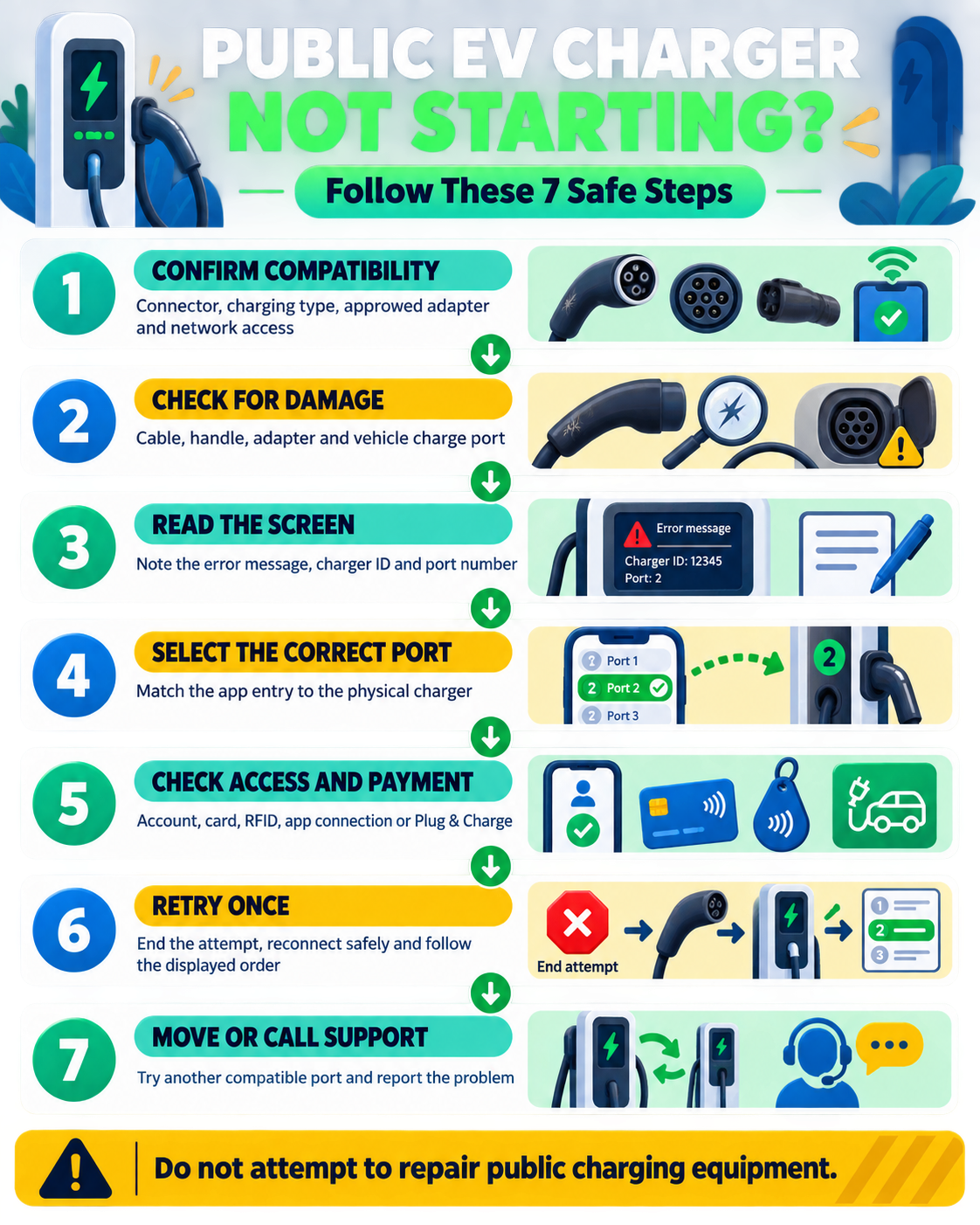
If an EV charging session will not begin:
- Confirm that the connector, charging level, and any adapter are compatible with your EV.
- Inspect the cable, connector, adapter, and vehicle charge port for visible damage.
- Read the charger screen and note any error message or port number.
- Confirm that you selected the correct charger and port in the app.
- Check the required access or payment method.
- End the failed attempt and retry once using the sequence displayed at the station.
- If it still fails, try another compatible port or station and report the problem.
The aim is to identify a simple connection or authorization problem—not to diagnose or repair the charging equipment yourself.
1. Confirm that the charger is compatible with your EV
Before changing app settings or calling support, make sure you are using the right charging equipment for your vehicle.
Check the connector and charging type
Connector standards vary by country, vehicle, model year, and charging type. A station may offer AC charging, DC fast charging, or both, and it may have more than one connector even though only one vehicle can use a particular charging port at a time.
The U.S. Department of Energy's Alternative Fuels Data Center distinguishes between a station location, an EV charging port, and a connector. That distinction matters: a map may show that a station exists without guaranteeing that every port or connector at the site works with your EV.
Check the following:
- The connector matches your vehicle's charge port or an adapter approved for your vehicle.
- The adapter, if required, supports the type of charging you are attempting.
- Your vehicle is eligible to use that charging network or station.
- The specific port is available and not marked out of service.
- The vehicle is in the state required by its manual, such as being parked and ready to charge.
Do not assume that a connector is compatible simply because it can be made to fit with an adapter. Vehicle support, adapter approval, charging type, and network access can all matter.
Look for visible damage or obstruction
Inspect the connector handle, cable, adapter, and vehicle charge port without touching exposed contacts. Stop if you see a cracked casing, bent or damaged contacts, loose parts, a severely pinched cable, scorching, or anything else that appears unsafe.
Do not force a connector into the vehicle or hold it in place to make the session start. Move to another compatible port and report the damaged equipment to the network or site operator.
2. Read the charger screen and vehicle message
The charger or vehicle may already be showing why the session failed. Look for:
- An out-of-service or unavailable notice
- A payment or account prompt
- A message asking you to reconnect the cable
- An incorrect port selection
- A session timeout
- A vehicle charging-limit or scheduled-charging message
- A charger or vehicle error code
Write down or photograph the exact wording, along with the charger ID or port number. Avoid including personal or payment information in the photo.
If the screen says to stop using the equipment, follow that instruction. If it gives a specific start sequence, use that sequence rather than one that worked on a different network.
3. Check the app, account, access, and payment method
A charger can be physically compatible and still fail to start because the session was not authorized in the way that station expects.
The Department of Energy's charging-network guidance explains that network software may allow drivers to find stations, view real-time status, start sessions, and pay when payment is required. The available options depend on the network and the station.
Select the exact station and port
At a site with several charging units, compare the number in the app with the number printed on the charger or displayed on its screen. Selecting the wrong port is an easy mistake and can prevent the session from starting.
Then follow the order displayed by the charger. Depending on the station, you may need to:
- Plug in before authorizing the session
- Authorize first and then connect within a displayed time window
- Start through the network's official app
- Tap an activated RFID or network card
- Use a contactless or physical payment terminal
- Allow an enrolled Plug & Charge session to begin automatically
For example, ChargePoint's start-session instructions describe app, phone-tap, and activated ChargePoint card options, while noting regional and station-specific requirements. This is a network-specific example, not a universal process.
Review the account and payment details
If authorization fails, check that:
- You are signed in to the intended account.
- Your payment card has not expired.
- The billing details are current.
- Any required charging plan or roaming access is active.
- The app has a usable mobile-data connection.
If you expected Plug & Charge to start automatically, confirm that your vehicle is eligible, the feature is enrolled and active, and the station supports it. Electrify America's Plug&Charge guidance illustrates why compatibility alone is not enough: the vehicle must also be eligible and enrolled for automatic identification and billing.
4. Retry once, carefully
Repeatedly plugging and unplugging can make it harder to tell whether the problem is the connection, authorization, vehicle, or charger. If the equipment looks safe and the screen does not tell you to stop, make one deliberate retry.
Use this general sequence:
- End or cancel the failed session in the app or on the charger, if one appears active.
- Wait for the screen to show that the charger is ready.
- Release and remove the connector using the vehicle's and station's normal instructions.
- Check again for debris, obstruction, or visible damage.
- Reconnect the cable fully without forcing it.
- Select the correct port and follow the station's displayed authorization order.
- Confirm on both the charger and the vehicle that energy is flowing.
Electrify America's mobile app FAQ similarly advises drivers who encounter a charging error to stop the session, unplug, reconnect, and start a new session; if the error continues, it recommends moving to another charger and contacting support.
If the session starts and then stops immediately, save the error message and move to another compatible port or contact support instead of repeatedly reconnecting.
5. Know when to stop troubleshooting
Stop using the port and choose another option if:
- The connector, cable, adapter, or vehicle port appears damaged.
- You notice scorching, smoke, sparks, unusual heat, or a strong burning smell.
- The connector will not insert or latch normally.
- The charger displays an out-of-service or safety warning.
- The same error returns after one careful retry.
- The session repeatedly starts and stops.
- The connector becomes stuck and the normal release steps in the vehicle manual do not work.
If there is an immediate danger, move away from the equipment and contact the site operator or local emergency services as appropriate.
Do not open an enclosure, reset electrical equipment, use tools or liquids on the contacts, modify an adapter, or bypass a cable lock. Another port at the same site may work, but check its connector, number, and status separately before using it.
6. Give charging support the details they need
Use the support number or contact method displayed on the charger or in the network's official app. A concise report helps the operator identify the equipment and understand whether the failure involved the charger, connection, authorization, or payment process.
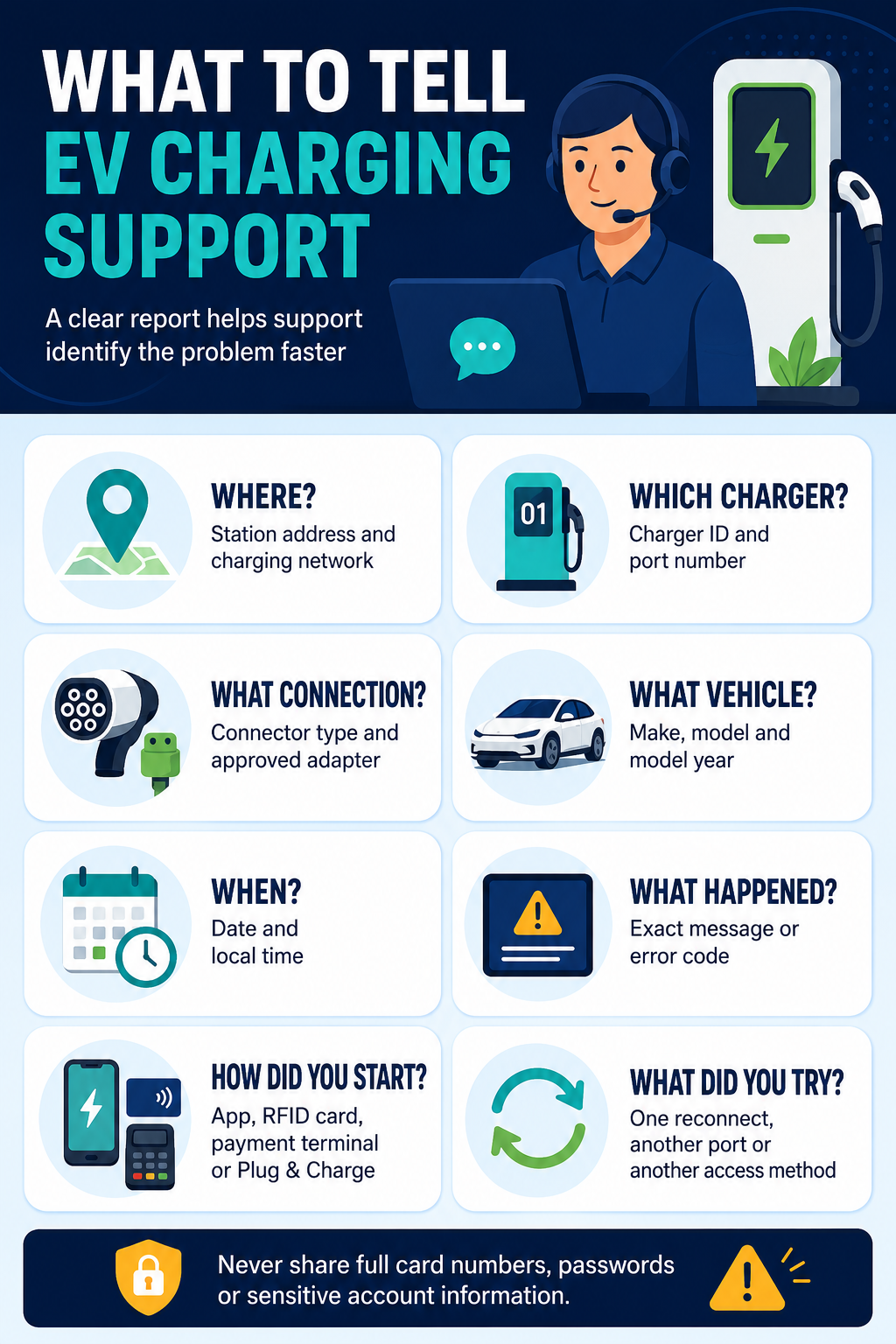
Have these details ready:
- Station address or map location
- Charging-network name
- Charger ID and exact port number
- Connector type used
- Vehicle make, model, and model year
- Approved adapter used, if applicable
- Date and local time of the attempt
- Exact error message or code
- Start method used, such as app, RFID, payment terminal, or Plug & Charge
- Whether payment appeared to be authorized
- Whether another port at the site worked
- Troubleshooting steps already attempted
A useful report might say: “Port 2, CCS connector, 3:15 p.m. Payment appeared to be authorized, but the screen displayed ‘session unavailable’ after the cable was connected. I ended the attempt, reconnected once, and received the same message.”
Keep the report factual and do not send full card numbers, passwords, or other sensitive account information.
7. Prepare before your next public charging stop
A few checks before departure can reduce avoidable problems, especially on an unfamiliar route.
Check the individual station, not only the location
Before relying on a charging stop, review:
- Connector compatibility
- Charging level and expected power
- Individual-port status, when available
- Network access and payment options
- Site hours and parking restrictions
- Recent network notices or driver reports
- A nearby backup station
The Department of Energy's Alternative Fueling Station Locator can help drivers find stations in the United States and Canada. In other regions, use an official network app, vehicle navigation system, or trusted local station directory.
Status information can change between departure and arrival, so treat it as planning information rather than a guarantee.
Keep access methods ready
Before a longer drive:
- Sign in to the charging apps you expect to use.
- Update expired payment details.
- Keep any required RFID or network card accessible.
- Confirm that an approved adapter is stored safely in the vehicle.
- Review your vehicle manufacturer's public-charging instructions.
- Save at least one compatible backup stop when practical.
Quick checklist: EV charger won't start
- Confirm the connector and charging type are compatible.
- Use only an adapter approved for your vehicle and charging method.
- Check the cable, connector, adapter, and charge port for visible damage.
- Read and save the exact screen message.
- Match the charger ID and port number in the app.
- Follow the station's required plug-in and authorization order.
- Check the account, payment method, app connection, and access eligibility.
- End the failed attempt and retry once.
- Move to another compatible port if the error returns.
- Call the support contact displayed on the charger when needed.
Frequently asked questions
Why does the charger say “connected” but not start charging?
The cable may be connected while the session is still waiting for authorization, payment, vehicle communication, or a network response. Check both the station screen and the vehicle display for instructions. Also confirm the correct port, payment method, charging schedule, and charge limit.
Should I unplug and reconnect the EV charger?
If the equipment appears undamaged and no warning tells you to stop, first end any active or failed session, release the connector normally, and then reconnect it once. Follow the station's displayed sequence. If the same error returns, use another port or contact support.
Should I call the charging network or the vehicle manufacturer?
Start with the charging network when the issue is limited to one charger or station. If your vehicle fails to charge at multiple known-compatible stations, or if the vehicle displays a persistent fault, consult the owner's manual and contact the vehicle manufacturer or an authorized service provider.
Can a payment problem prevent an EV charging session from starting?
Yes. An expired card, incorrect billing information, inactive charging plan, account problem, or failed terminal authorization can stop a paid session from beginning. Check the message shown by the network before trying again.
Final takeaway
When a public EV charger is not working, focus on safe checks: compatibility, condition, station instructions, access, payment, and one methodical retry. If the problem continues—or anything looks unsafe—move to another compatible charger and report the issue. The goal is to resume the trip safely, not to repair public charging equipment yourself.
Sources
- U.S. Department of Energy Alternative Fuels Data Center: Electric Vehicle Charging Stations
- U.S. Department of Energy Alternative Fuels Data Center: Electric Vehicle Charging Networks
- U.S. Department of Energy Alternative Fuels Data Center: Station Locator
- ChargePoint: How to Start a Charging Session
- Electrify America: Mobile App FAQ
- Electrify America: Plug&Charge